The primary purpose of payment routing is to facilitate a successful payment under the most favorable conditions and with the least risk. The Methods routing tool enables our clients to define optimal conditions based on the submitted amount, geography, or payment method details.
Overview
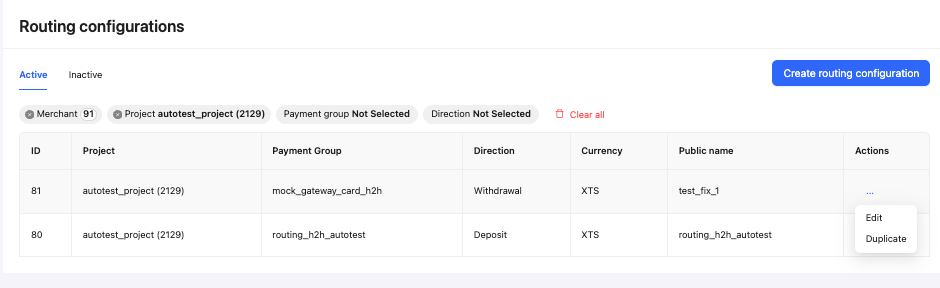
The Payment Methods Routing tool is available on the Routing configurations page, based on user permissions.
The overall flow is quite simple:
Create a routing configuration for a specific payment group.
Define routing rules applicable to that configuration.
Enable routing configuration processing for the configured payment group.
Creating a routing configuration
To create a routing configuration, proceed as follows:
Open the Routing configurations page.
Select the Merchant, Project, Payment Group, and Direction (Deposit/Withdrawal) applicable to the routing configuration.
Click Create Routing Configuration, then select the applicable User Currency and Workflow (Redirect or H2H).
It’s recommended to add a Public Name if you plan to use routing for multiple payment groups.
Once the routing configuration is created, you can proceed to create Routing Rules:
Select Edit from the Routing Configuration dropdown menu.
Click Create Routing Rule.
Define the applicable Conditions, Methods, and Preferred Method Weights, then click Create.
Routing rule conditions
Condition | Applicable workflow | Description |
|---|
Amount | | Optional text fields with range inputs From and To. Validation: integer only. Operands used: From – >=, To – <. |
Card issuer brand | | Mono-select dropdown containing available payment network names. |
Card issuer country | | Mono-select dropdown listing available countries. |
BIN | | Optional BIN exclusion text field. Validation: integer only. |
Stop cascade processing | | Multi-select dropdown listing all available decline reasons. |
Enabling/Disabling a Routing Configuration
Routing configurations that contain at least one Routing Rule can be assigned to a Payment Group. Once a routing configuration is assigned to a payment group, it will be used for processing payment requests.
All active routing configurations are listed under the Active tab.
To deactivate a routing configuration:
Select Edit from the configuration’s dropdown menu.
On the Edit Routing Configuration page, disable the Assign to Payment Group toggle.
All inactive routing configurations are listed under the Inactive tab.
Execution Priority
Routing rules are executed from top to bottom. This means that the conditions of the highest-priority rule are checked first. Only if those conditions are not met does the system proceed to the next rule with lower priority.
If routing rule processing results in no applicable methods, the system uses the default methods defined in the initial payment group configuration.
When a routing configuration is assigned and enabled, H2H transactions must always be processed through the Sale workflow. The user will be required to enter the CVV code, even if a payment token is already available.
Identifying Payment Groups With Assigned Routing Configurations
When a Routing Configuration is assigned to a payment group, display a link to the corresponding configuration ID so that users can open and edit it on the Routing Configurations page.
Display the text “Routing Deposit” or “Routing Withdrawal” for payment groups with an assigned routing configuration that has an Active status.
Disable the IN% and OUT% fields for payment groups with an assigned routing configuration, and show the following warning message: The IN% and OUT% values can be updated in the related routing configuration.
Processing Priority
Sticky methods and methods penalty—highest priority.
Routing configuration (if assigned and active). In case no rules match the conditions, a processing error is generated.
Payment methods are set up for the payment group currency.
Limits—Keep the full range between the minimum and maximum values (use the lowest minimum and the highest maximum).
Amounts—Use the configuration from the Payment Group settings.
Instructions—Display only when defined in the Payment Group, as they are relevant for some APMs only.
Abandoned Deposits—Redirect the player to the Payment Group instead of the specific method.
Decline Page—Leave unchanged, as the same payment group is not suggested again.
UX and min/max amount decision logic
When a routing configuration is used for transaction processing, the method limits are calculated as follows:
Redirect flow:
Displays the Amount field to the user.
On click, the system checks the Routing Configuration and determines the applicable Payment Method.
Displays the second page with any additional parameters that must be filled in (if applicable) or automatically submits the request for further processing if no additional input is required.
H2H flow:
Displays the following fields to the user: Amount, Card Number, Expiration Month, and Expiration Year.
Provides front-end validation for Card Number, Expiration Month, and Expiration Year, since the applicable method and related regex patterns are not yet known at this stage.
On click, the system checks the Routing Configuration and determines the applicable Payment Method.
Displays the second page with any additional parameters that must be filled in (if applicable) or automatically submits the request for further processing if no additional input is required.
Second step display
At the second step, display previously entered read-only fields:
P2P: Amount.
H2H: Amount, Card PAN.
Display limits:
Taken from the Payment Group (if configured) or from Payment Methods (wide-range).
Method-related infoblocks are displayed at the 2nd step. Payment group-related infoblocks are displayed at the 1st step.
Processing time is taken from the payment group.
Not supported features:
UX:
OPTIMIZE PAYMENTS BY AMOUNT, GEO, AND METHOD FOR HIGHER APPROVAL RATES
WITH CRYPTO TURNKEY